Nov 16, 2016

Don't Break Your Dynamics CRM Online instance

Yes, Microsoft Dynamics CRM Online is a well-known and solid system. But I thought I should warn you that you can break it, using nothing but the SDK code, if you use it in a certain way.

In a migration job from an On-Premise install to an Online install, I was migrating tracked e-mails with attachments. From how I'd migrated other entities, I figured attachments would follow the same procedure: Import e-mails with their existing Ids, and import attachments, with their existing Ids, referencing the existing e-mail Ids. Boy, was I wrong.

Everything worked, meaning the service did not object to what I was doing to it, and browsing the activites online worked fine. Or so I thought. When looking closer, the attachments were there, but they were "invisible". The file name and files size were missing, and nothing showing up in the e-mail viewer.


So of course, my first action was to delete everything. A batch job to delete all e-mails, failed. That's strange... Well, try to delete the attachments from inside the e-mail viewer, then? The garbage can icon was there, and appeared to do some work when I clicked it. But no, it ended up in an error:

Now I was really getting unsure how to proceed, so I attempted to delete all accounts. Still no joy. Accounts were not getting deleted as long as they had e-mails with attachments connected to them! After a few attempts at this, and realizing there was no backup of the instance available, and worst of all, this was a production instance (but not yet in production), I connected with Microsoft Partner Support. It's now been a couple of weeks, and the problem is still not resolved.

I have since created a sandbox instance, and found out how to migrate e-mails with attachments. So, here's my solution (drumroll):

  • Get all e-mails from the source instance
  • For each e-mail in the source, create an upsert or an insert for each e-mail
  • Then, loop through the attachments, and do a create request for each
  • If you're doing this in batches, remember the maximum count for one batch is 1000 entities, so keep track of how many entities you're trying to push
Doing it this way has one downside that I've found, which is that pictures embedded in the e-mail no longer work, because the original guid is embedded in the e-mail source. Maybe someone somewhere will have a solution for this as well.

Hope you read this blog post before you do a failed e-mail migration like myself. If not - best of luck!


Nov 2, 2016

Testing an MVC site with integrations - part 1

Just recently I became a Dynamics CRM integration consultant. That's a new product for me, in the past I have done one integration, but it was just a small data syncronization thing, and not a "real" project.

I joined an existing project, where the product is an Orchard (an ASP.NET MVC 5 based CMS system) module that integrates with a Dynamics CRM installation. It provides a self-service point for the client's customers. Sounds good, eh? Orchard was new to me, in addition to Dynamics CRM, but I quickly found my way around. Orchard uses Autofac, log4net and Automapper internally, so it's quick and easy to hook up your work using their conventions.

Anyway, this blog post was intended to be about testing. When I joined the project, there were literally no tests in there. So I started diving in to write some, before doing changes to the code and scratching my head, wondering if things were still working as intended.

It quickly became apparent why there were no tests... At least from my point of view, the only tests that could be written at that point, were end-to-end tests. MVC controllers were calling Orchard and CRM proxy code here and there directly, and a lot of information was being passed to other classes in their constructors, not to mention a lot of work was carried out in these constructors.

As we all know, or should know by now, tight coupling is bad for you. So my first mission became to reduce the coupling between Orchard and our Orchard module to a minimum. Sounds like a strange thing to do? I don't think so, and all you need to do is really to place any Orchard-referencing code in an apt interface. There, now you can mock all your user settings, content and what not, and actually write unit tests on your controllers (or other classes, of course).

And the same applies to the CRM bits of course. Extract interfaces that do the CRM integration bits. In my case, this made sense to put in a separate library. The project actually has several different clients, so gathering the common logic in this library saves time. Now that your controller only references some interfaces that we can mock - we can start writing actual tests!

So let's begin by testing the routes in your application. In my case I found a few routes that lead nowhere, and removed them, I also found a few not working and fixed them. That's value from writing the first ten or so tests... If you're using MVC there's a neat helper function in the MvcContrib.TestHelper package. It let's you write a route test like this:

"sample/12345".Route().ShouldMapTo<SampleController>( x => x.Action("12345"));

If your project is something other than a "vanilla" MVC application, you may be providing routes in some exotic ways, other than adding them to the RouteTable. If so, remember you can still add your routes to the default RouteTable in your test setup method.

In Orchard, you can get the routes from your route provider and use them in tests like so:

var routes = new MyPage.Routes().GetRoutes().ToReadOnlyCollection();
routes.ForEach(s => RouteTable.Routes.Add(s.Route));

Second, I test the validation on the input models. I'm talking about the dataannotation-type validation, with attributes on the model's properties. It does not cover your coded validation of your model. This is important both for your data integrity and security reasons, but also for the users experience when using the application. If validation fails, the user may be left unable to perform whatever task she is up to (worst case: offering you a job). The easiest way I find to test this validation, is by going directly to the ValidationContext that MVC uses internally:

private IList<ValidationResult> ValidateModel(object model) {
var validationResults = new List<ValidationResult>();
var ctx = new ValidationContext(model, null, null);
Validator.TryValidateObject(model, ctx, validationResults, true);
return validationResults;
}

You can simply check if the validationResult.Count > 0 if you want to see if the model passed validation. If it is a specific valdiation error you are looking for, don't just check that it is greater than zero - assert that it is exactly the number expected, and with the expected error:

Assert.That(result.ContainsKey("InvalidPostCode"));

Third, we can start testing the controllers. We now know that the routes will resolve to the correct controller and action, time to test whether the action returns the expected result. Again, the MvcContrib.Testhelper library helps us get going:

var builder = new TestControllerBuilder();
var controller = Container.Resolve<YourController>();
builder.InitializeController(controller);

Now our controller variable has all the properties that your code expects to find on it, and you can test TempData, Forms variables, HttpContext etc.

That should be enough for this first part, I hope to write some more soon :)

Sep 3, 2016

Turning coding into a 4X game

I am a fan of 4X games, but I don't have time for gaming these days :( So, let's see if we can add a hint of gamification to coding! Get points for doing stuff you should do anyway, and earn new "abilities" on the way.

I've been surprised before at how much a point system or a badge can do (just look at untappd). So why not give this a shot? The hardest part will probably be keeping count of your points.

Worst case if you try, you'll end up with better code - or better knowledge of it.

Explore
This one's a given, I guess. Whenever I join an existing project I spend some time exploring it, taking the tour so to speak. This may be the hardest task, it's not always easy to pick up all quirks or where non-core logic lives. I generally recommend getting an overview from one of the architects or a well seasoned developer on the team, then dig from there.

A little hard to gamify, but: 10 points for completing, not skipping ahead!

Expand
Add to the existing code base. Write tests if they're missing. Implement new specs. Write more tests.

1 point for adding new functionality. After all, that's the fun and easy part. 5 points for each missing test added. 100 points for writing a test that uncovers a bug. In my experience you can get a lot of points here...

You can get new abilities as you progress as well, how about
Level 1: Write unit tests ONLY. Write 10 passing tests.
Level 2: Integration tests allowed. 10 integration tests and 10 unit tests.
...and so on,  let me know where you end up ;)

Exploit
I like to think that I apply SOLID and DRY principles to my code. See if you find parts of the code that may be in violation.

Level 1: Find 5 DRY cases and fix them
Level 2: Find 5 Single Responsibility cases and fix them
Level 3: Find 5 Open Closed cases and fix them
... and so on

Exterminate
The fun part! You get to delete any dead code you encounter, be it commented code, unreferenced functions or entire files.  But here be dragons: Unless you have gained an intimate knowledge of the project, see "Explore", you'll risk deleting code that seems unused, but is actually referenced from some arcane spell.

Another way to "exterminate" may be to do code reviews with your peers (or shall we say, competitors) and give points for finding issues in their pull requests.

1 point per deleted line of comments, 5 points per file or class, 10 points for issues in your peers code.... this may harden the competition. Increase at own risk for further friction in the workplace!

Bonus:
Complete all 4 without breaking anything and get an extra life for you next project!

;-)

Sep 7, 2015

Lightroom 6 in Windows 10

First things first, I did an update from Windows 8.1 to Windows 10. This probably accounts for a lot of my problems, though it's also the most popular way to install Windows 10 right now. So here goes...

AMD Driver
The first time I tried to start Lightroom (version 6) - it simply froze on the loading screen. Turns out there  is a bug with the AMD video driver, so I attempted to fix it by installing this beta driver:
http://support.amd.com/en-us/kb-articles/Pages/latest-catalyst-windows-beta.aspx

As you can read there, one of the bugs it fixes is
  • [424009] Adobe® Lightroom may crash if GPU rendering is enabled

However, that didn't fix the problem. It was still hanging on the launch image. I read several places that the Lightroom CC version could have a similar problem, but it was fixed by logging out and in again in the Creative Cloud app. No such option for Lightroom 6, however.

The beautiful launch screen of Lightroom 6.

Uninstall
So I attempted to uninstall it, reboot, and then install again. Now I got into Lightroom okay, but I was presented with an information dialog, that said I had to deactivate Lightroom on one of my other computers to continue. I suppose the upgrade made Lightroom lose track of which computer it was installed on.

I had to contact customer support to have them deactivate the old install, and now everything works. The beta driver seems to fix the issue with the GPU rendering.

Preparing for Windows 10 upgrade
If you want to avoid this, simply deactivate and uninstall Lightroom before upgrading to Windows 10.

You'll find the "Deactivate" function hidden under Help, and "Sign out".

Good luck :)

Dec 12, 2014

How to install all your software on a fresh Windows install

One word: Chocolatey.

Have you ever got a new computer, and spent the first week finding the software you're used to, downloading and installing every one? Did it ever happen that you couldn't find the right download location? Well, this may be the solution.

Chocolatey is a package manager, sort of like a program store, or if you are familiar with apt or rpm from linux, it's much like that. It's command line based, and that's a good thing. In my opinion it's very often a great thing...

In short, it lets you download and install all the different software that has been packaged and uploaded to the chocolatey database. It also handles dependencies, for instance the .NET framework, or python 3, or any other prerequisite.

The great thing about it being command line based is this:
You can create a script that installs all your favourite software.

Doesn't that sound sweet? I realize that it may not appeal to all of you, but as a computer geek and developer, it's very helpful, not to mention cool. It's also a real time-saver since most of the installations require no user input at all.

So to get started, you need to visit Chocolatey, copy the text from the first box on the page, and paste it into an administrator command prompt.

Next, you need to either install programs from command prompt like so:
choco install vlc (installs vlc media player)

Or you can install everything from a config file, like my example below, just save it with a .config extension!

choco install filename.config

You can see my sample config file here, it includes my favourite development tools: https://gist.github.com/anonymous/425de7eb68dbf150df23

Have fun setting up your next computer in a jiffy!

And remember to contribute; if you find that something's missing from Chocolatey, it's easy to upload your own package for it! Please read Chocolatey's guide first, there are some rules to follow.


Dec 9, 2014

The search for a great free antivirus on Windows 8

So, I just got a new laptop. It's a great little machine, a Dell XPS 13, and it came preloaded with very little software. That's a good thing if you ask me!

One of the handful of programs preinstalled was MacAfee antivirus. It came with a free one-year license, and I decided to take it for a spin. That did not last very long... I constantly noticed it eating CPU time, slowing down  my computer while eating away battery. Huh! It did have some cool features such as an online central for managing all your MacAfee enabled devices, but that just didn't help. I had to find something less intrusive.

I tried AVG, which I remember that I liked some years ago. It's still free, and it looks like it's working well, but it's just so annoying with all the sales pitch! You have to be very alert to click the right button and not end up buying and expansion or upgrade. It's like "free to play" antivirus, so it had to go, too. In addition, it feels a little overzealous with what pages and extensions it alerts the user about.

Then I went to Avast, which I run on my desktop computer. It's not bad, but even Avast's free version is getting a bit naggy. It does not slow down my computer, however, which makes it better than AVG and MacAFee.

Then finally I arrived at my current choice: Avira. It has a free edition, it does not slow down your computer, it does not nag too much about purchasing the full version, and it does a great job in keeping updated on the newest threats.  Oh, just be aware that it wants to install dropbox along with it.

All the packages I tried, all were free and had both desktop and mobile versions. If you really need a "central" to manage all your household units in one place, MacAfee is the winner. Otherwise, try Avira!

Let me know if you have a favourite of your own I can try!

Jun 1, 2014

Keeping data safe - part four

As I said, the final part of this series would be about using services that let you forget about backup. That is, unless you are really devoted to avoid data loss. And we are, aren't we?

The cloud and it's services has made this much more available only over the last year or so. There's a host of online services:

  • file storage (dropbox, Microsoft's onedrive (previously known as skydrive), google drive, jotta cloud, amazon, just from the top of my head)
  • online office apps
  • music and video streaming (spotify, wimp, youtube, hbo, netflix)
  • todo-lists like Wunderlist
  • online notebooks such as Evernote
  • specialized storages like flickr let you store and share your images
  • source code repositories
  • e-mail - back in the day, it was downloaded to a file on your computer. today, it's a given that it's available online.
  • and more
And with all of these services, backup is taken care of for you. In some cases, like a music streaming service, you don't have your music files backed up, but you have access to a whole library of music, that I pretty much can guarantee has a good backup strategy.

They also have apps for different systems, so you can get a hold of your stuff from work, from your cell phone, or from your linux laptop.

This means that you don't have to back up every single file on your existing drive. Instead, you can concentrate on the bits that aren't taken care of in the online services.

Imagine you're only using online services. Hard drive crashed? No problem. Just reinstall the operating system, and you're good to go. Seems too good to be true? Chrome OS already does this.

So what I'm suggesting is partly utilizing these services that already take care of the important part for you, so you can concentrate on actually generating more important personal memories (data). The different services offer different pricing models and features, so you need to consider them and make an educated choice for yourself.

Then know what's not included in the online storage, and assure that that part of your data is safely backed up as well.

Finally, I'd like to recommend taking a minute to value the different data. I mean, not every single file, but in groups: Family photos? Probably the one thing, next to work, that I'd really hate losing forever. Forever like in a house fire.

If an online service is terminated, there's a good chance your data won't be accessible. Likewise if your user is deleted for some reason, the terms of the service may state that they are required to keep your data only for a few hours...

Now the probability that your hard drive crashes simultanously to some critical error with your storage service, or very close to that, is of course very small. But it does exist. So if you really need to be sure, you should consider adding another backup to your system.

Jun 24, 2013

Use an optical cable to get surround from your HTPC

I've been running my Ubuntu based XBMC HTPC for over a year now, and problems have been few and far between. But recently I started having issues with the sound of a show I'm watching. I only got the message "failed to initialize audio device" - which made a few bells go off. I have had the same issues previously, but just used a different file (ahem) and got sound from that.

So, it turns out, these last files were AAC-encoded, as opposed to for example, mp3. After some googling, I  finally realized the main thing everybody were saying was you can't have AAC over HDMI. You have to use SPDIF output for that (like an optical cable). That's fine, I have an optical port on my receiver, and on my HTPC.

So to get this to work (specific to my Ubuntu/XBMC setup) I had to:
1) Enable HD Audio output to SPDIF in my BIOS settings. They were default set to HDMI.
2) Connect the optical cable to the HTPC and the AV receiver.
3) Change XBMC's audio settings to output "Digital/Optical", tick the boxes for AC3 enabled and DTS enabled receiver, and finally play around with the bypass and audio devices - what worked for me was iec859 device 1, but you have to try the different ones available to you.

You can see the different devices using the command aplay -l, it's output looks like this:
Output of aplay -l
So according to this, choose the "device 1 iec859" option in XBMC - do not choose device 1 hdmi, for instance, that's just XBMC being a little ignorant.

Now I have no problems playing any files, and I get surround sound whenever it's available!


Apr 24, 2013

Get an MVC web site up and running on Azure in 15 minutes

Updated November 9, 2016 to reflect the changes to Visual Studio, Team Services and Azure.
If you want to set up an MVC web site, this is possibly the easiest way.

I was really impressed after setting up a site this way the other day, and it's completely free (at the time of writing, anyway, and not including domain name registrations or your time). Microsoft are really getting the hang of it this time.

So here are the necessary steps:

  • If not installed, download and install Visual Studio. The community version is fully featured and free for students, open-source and individual developers.
  • Register a free project at Visual Studio Team Services (it's free up to 5 devs). Choose between TFS and GIT as the version control system.
  • Create a new MVC project, and check the box for "add solution to source control". Now paste the URL you got from the last step, to link it to your Team Services account.
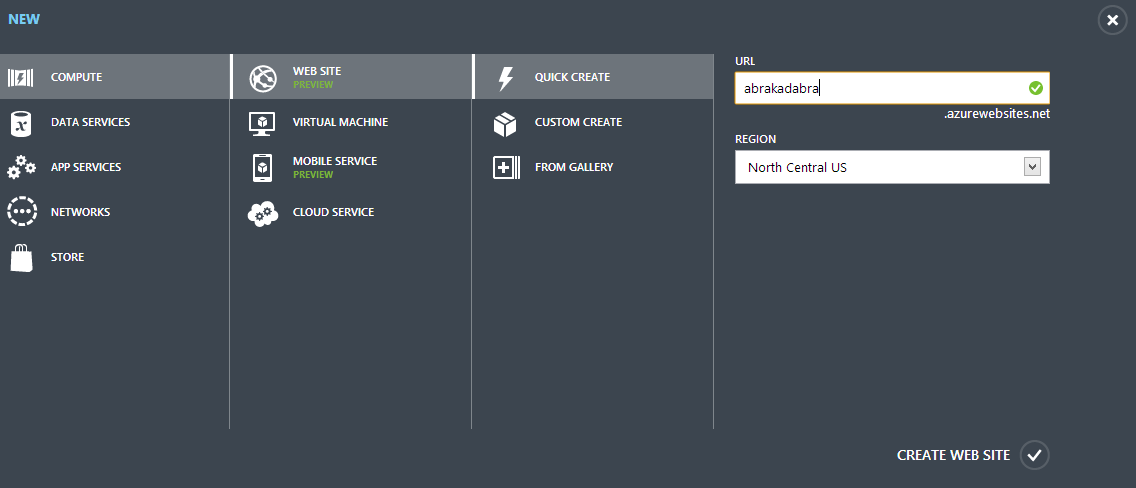
  • Add a windows azure web site to your azure account (it's free to create a trial ). Notice that you don't have to specify the kind of web site, Team Services automatically figures that out and configures it from your MVC project.
  • Link it to your project by clicking on "Integrate source control" and select Team Services, then the URL you created when signing up.
  • Create site, check in - and bam! It builds and deploys your web site to the cloud.  

I don't know 'bout you, but I think that's pretty nifty. You can now view your web site in the address you specified for the web site, it should be on the form "myawesomewebsitename.azurewebsites.com".

Optional steps:

Have fun!

Apr 10, 2013

Windows Phone 8 - My Experience

After a long two and a half months of waiting, I finally got my Windows Phone. My previous phone was a Samsung Galaxy S2, before that, a Sony Ericsson W715. And before that, I was a Windows Mobile user with HTC S30 and the Qtek 9100. Those two phones really put me off the thought of  a phone with Windows on it.

But after attending MSDN Live in Oslo 2012, I was intrigued by Windows Phone 8 as well as the hardware from Nokia. I guess the fact that I work as a Microsoft .NET developer didn't hurt, either.

As you can see, the start screen on my phone is quite appealing (at least I think so) - and without a single widget or a grid of stylized iCons.


Windows Phone 8 - Start screen


When I got the phone, my first impressions were all good. I didn't have to charge it before using it for the first time, I didn't have to read any manual, and I already had my Microsoft account, SkyDrive, Office365, and what not. The menus were fast, animations subtle and cool, nothing felt like it was slow or not  working. Integration with Skype and Office products were smooth as expected. Even different social networks and e-mail were supported out of the box. Nice going! (I did run into a small problem with getting my gmail contacts over to Microsoft, but that turned out to be my own fault)

Then, I visited the Windows Phone Store. And, well, I wasn't psyched by what I found. While using Android, I've grown accustomed to some apps and services that I wanted to bring with me to my new device. Particularly, Instagram and Dropbox. Neither are available (officially) on WP8. There are some limited third-party apps that bring some of the functionality, but not the official app. I found the facebook app to be weak compared to the (last) Android version as well, with my feed not being filtered properly any more, and finding people was surprisingly difficult.

Two apps that really deserve praise are Wimp and Skydrive. Skydrive is my new dropbox, and it works much in the same way, except I have much more space there. Pictures and music automagically synced, and the OneNote app is great instead of Wunderlist and Evernote, that I used on Android.

Internet Explorer works fine, though I do wonder if a better solution to tabbed browsing can be made available, and there are some sites that don't play nice (a Norwegian newspaper is all white - http://m.db.no ).

I should mention I also enjoy the Twitter app, but I'm pretty new to Twitter so I don't know the Android version.

However, there are some things that could be improved. Even Skydrive has a big drawback. For instance, I preordered a new album from Steven Wilson, and got a digital copy as well. Downloaded the .zip, sent it to Skydrive, and there it was. But even though my phone recognized it, and even had a zip icon, it was not possible for me to download the file or extract it on my device. I understand, now, that there's no getting access to the file system. No file manager, either. What about File Explorer for Windows Phone? Why can't we have that?

When resuming any app, it takes ages to restore the state. I guess some processing must take place, but in the event that the screen switches off when I'm reading, it's annoying to watch the "resuming..." animation for two seconds.

Connectivity settings (Wifi, GPS, Bluetooth) are well hidden, and you have to go into the settings menu to change them. There should be a way to pin on/off as a tile to the start screen! I know there are apps for this too, but it would be simpler.

The same is true for the sound options, you have to go through the settings menu and turn off vibrate and sound to go in silent mode. Huh?

I've had the phone reboot on several occasions, though it hasn't happened for the last week or so. At one point I was sure it was related to sending MMS to several contacts at once, but that wore off as well. It may in fact be a hardware issue, of course.

I suspect the 4G module to be a little unstable as well, since after turning that off, I have a lot more battery capacity and a lot less reboots.

Some things are rather undocumented features, such as the screenshot (start + power) and the reboot (volume down + power for 10 secs!), while others have gone away  - I used to enjoy that the Lumia would jump straight from lock screen to camera when I clicked the camera button, but that was removed in an update :(

All in all I'm quite happy with Windows Phone 8 as a mobile operating system. Once I got the hang of it, and tuned it to my liking, I'm happily using it every day. I would like to see the minor issues that I've mentioned resolved, especially the "resuming..." is very annoying, and a step back from where I was on my Samsung Galaxy S2.

I wouldn't go back just yet, though, and lately the Windows Phone store has been releasing new and promising apps.


Mar 4, 2013

How to get Android contacts to your WP8 phone

I just got my Nokia Lumia 920. Wee! I've been waiting since November last year, so... yeah.

The first thing I needed to do when I got it, was getting my contacts over. Last time I checked, it was just to add my google account, tell it to sync e-mail, contacts and calendar - and there you are. But not so much in my case.

I though it may have something to do with Google removing support for the ActiveSync protocol, but that apparently has been postponed until July 2013. Still, I think it's better to be prepared and do it the right way, right now - so you don't wake up in August wondering where your contacts have gone.

First, go to your Android device and check that you are syncing your contacts to google. Oh, you are? That's what I thought. Now check the last time they were synced... that was the real issue, on my device. Apparently, when I switched jobs and moved all my exchange contacts over to google, it did just that. But only locally... and for over a year, I was thinking my contacts were safe! Anyway, click the little symbol to sync now, and wait for your contacts to appear over in gmail contacts.
Choose to add Google contacts here

Google contacts added successfully!

When they are synced, go to outlook.com and the "people" hub and select Google contacts from the menu, like in the screenshot. then you should see the import guide to the right, with facebook, linkedin and gmail. If you don't see gmail in there, you have already set that up, and can relax. You should be able to see the google logo to the right on the screen, like in the second screenshot.

Now the last step is of course to log in using the same account as in the last step on your Windows Phone and sync contacs.

I'm sure I'll have some more blog entries when I've been using my phone a little, so stay tuned if you're curious about Windows Phone 8.

Jan 3, 2013

Keeping data safe - Part three

The previous part was about partitioning, and this part is about mirroring. As it turns out, not having to restore from a backup at all, is the most efficient way of avoiding data loss.

One way of ensuring your data is to mirror it continuously, usually by mirroring the whole disk. A drawback of data mirroring is cost - you need at least two disks, which means the price doubles. That is where partitioning steps up and says hey, you don't need to mirror everything - just put the important bits on the mirrored drive.  You usually don't have more than a 256 GB disk of personal data (I know many who have less  - a few have a lot more), which means you can have a small-ish set of drives for mirroring.

It actually makes sense not just because of the price tag, but because of the time it takes to rebuild the drive.

The benefit of this setup is quite easy to see, because recovering data from a hard drive failure can be very expensive, and always takes a certain amount of time. And even if you have a backup, you risk data loss because when did you perform a backup the last time? Even if it's a few hours ago, it doesn't help much if the work you did after, is gone.


How to set up mirroring

Strictly speaking, there are two ways of mirroring, one is by hardware, which you set up in your computer's BIOS, the other one is software based and can be done from the operating system.


In either case, you'll just see it as a regular hard drive on your system, but behind the scenes there are two drives, and every write action is performed on both disks. If one fails, the system automatically fails over to the working one. Hopefully you'll also get a message about the failure, but this depends on the software.

I'll just quickly go through the built-in feature in Windows 7. Go to Disk management (either click through Control Panel, Administrative tools, Computer Management , Storage and hit Disk Management - or just write disk management and click on "Create and format hard disk partitions" or from the run dialog, write diskmgmt.msc). Right click the disk you want to mirror, and select "Add mirror..."  This option is only available if a suitable disk exists. You can also remove mirrors the same way.

Windows 8 has a new feature called "Storage Spaces" that provides the option to mirror or distribute data over several disks. You'll find a nice review of this feature at howtogeek.com.


Things Takes Time

A word of caution here, (re)building an array of disks takes time. I have two 2 TB disks mirrored, and whenever I hit blue screen or reboot or system crash of any type (last time, way back in 2012) I couldn't really exhale until some 6 hours later... because meanwhile, the status of the array was "rebuilding". It basically means going through every bit on the one drive and replicating it on the other. And if the working drive fails during that time, you are in a hard place. (So if you're really really paranoid about losing anything, you might want to keep a spare drive handy, or even go for a heavier RAID setup, like RAID 5, which involves more hardware, but has a higher fault tolerance)


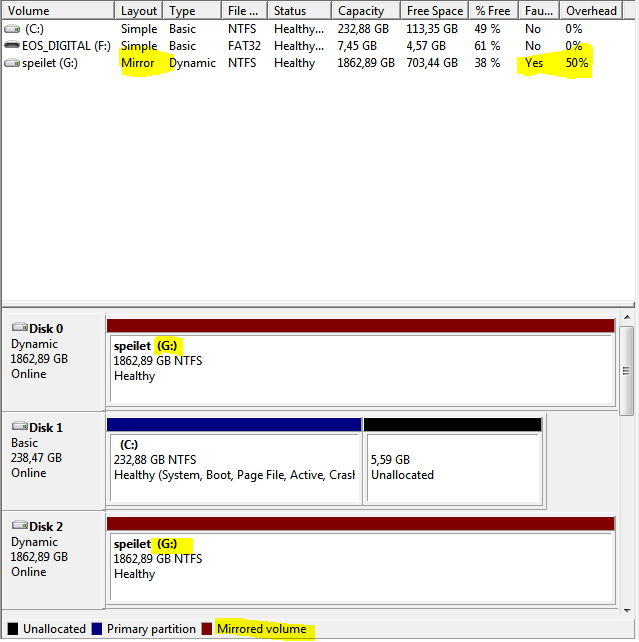
Windows does not do a good job in telling you if something's wrong with the mirror (it does hint something with a shout-out just after booting, but you have to sit there to notice it), so you need separate software. Or, you can go to Disk management, where you'll see the status of the array (I've highlighted the relevant bits). You see the two red disks, "disk 0" and "disk 2", they are both assigned to G: - if I go to Explorer, I'll just see one instance of G:.  You'll also see it reports a 50% overhead, which is correct. I have 2x 2TB = 4TB disk space, but only 2 TB is available. 50% is lost, because it's mirrored.


Next part will be about continuous backup, or using services that let's you forget about backup. Stay tuned.

Dec 3, 2012

Keeping data safe - Part Two

Some say the devil is in the detail. This may not be necessary for a succesful backup strategy, but it keeps things nice and tidy: Partition your data. If you can partition physically, on different disks, that's great.  Even if you only have one hard drive, you can split it into several partitions. And on mobile devices, you can split between internal storage and external storage (SD cards). There's also software for partitioning SD cards.

It can be as easy as splitting between data and programs, or you can be more fine-grained. If you split things this way, you can always install a different operating system, or install your data-disk in another system, without dragging along old mud from previous installations.

Then, you should always save your data to the designated data-partition, and keep the operating system and program files on the other one. This is actually what I've run into many times, the OS stops working, and you're unable to get in to copy those files to where you want them.  If they're on a separate partition, or better yet, separate hard drive, you can easily reinstall without touching your saved files.

There's a word to be said on "data" as well, you can choose to split it into "commercially available" and "not commercial available". The latter one being stuff that you can't buy or download or otherwise get your hands on, should it disappear from you device - that's your personal notes and photos, and whatever else you create.

Should I back up my programs?

You have to install programs again on your new installation - unless you create an image of your disk, and use that instead of backup. That's a question I get from a lot of people, shouldn't I back up my "c:\Program files" folder? Well, no, not really. Some configuration files or the files you saved from the programs, of course. But most programs require registry changes, different files to be created and permissions to be granted. These won't be recreated if you simply copy your old Program Files folder  (or your \usr\bin) over to your newly installed drive.

You can choose to back up the installation files for your programs, but chances are they are available online anyhow. For convenience's sake, you may keep them around (especially if you have a license for a specific version!).

With Windows 8 you have the option to "reset" the operating system  to it's initial state, or to a point in time you've set by yourself, and then it's possible to keep your programs and settings as they were at that point. In earlier versions of Windows, you'd have to make disk images to keep this sort of functionality. Anyway, the best idea is still to separate your concerns between data and programs, because it just may be that your next operating system won't be able to install on top of the last one. Or - you're unable to restore from your system restore point, and then what do you do?

Next part coming up: mirroring disks and why it makes sense (and how it's connected to partitioning).

Nov 25, 2012

Setting up Telldus Tellstick Net

This is a very quick post on my latest gadget purchase, the Telldus Tellstick Net.  It's a networked radio signal transmitter, designed for home automation - which is what Telldus is all about.

The device is small, it can run on USB power or from the mains, and it has holes for wall mounting. Great start!

After installing the device, which is a breeze, just login to live.telldus.com. It should already have detected a tellstick net  from your location. I just clicked OK and it was activated. Smooooooth - no need to punch in that nasty 24-character ID.

I had a little trouble using live.telldus.com from Google Chrome, but IE9 was fine. Another problem is that if you register using google, as I did first, you get an e-mail with a password, but no indication of this from the web page. So I was unable to log in with my google account and registered a regular account,when getting the password, I saw that one was already sent to my google account. This is something the Telldus guys should fix.


Once logged in, start by adding devices. What's very cool about the Tellstick Net, is that it doesn't only support Telldus and Nexa devices - it supports a wide array of on/off switches, dimmers and sensors. Check out this list!

 I first added my devices from the Nexa  "code switch" (which I guess is more commonly referred to as "remote") , but was unable to find the "house code" on it. You have to look under the battery cover for it.

A downside using the code switch is that you only get on and off state. If you want to dim the lights, you have to have a dimmer (duh!) and also install it as that - not via the remote.

But that's also very easy, just click on the learn button in the web page, and then the learn button on your dimmer (on the Nexa one's it's a green light). The light will flash when a successful match is made. This does not override your remote unit number, if you have already learned it there, so you can still use the remote.

Now you can add a group device also, which is currently in beta, but works just fine. For instance, create a group called "lighting ground floor" and make it switch off  every night at 10:15 PM. I've not tested if this works only when the internet connection is up.

Other cool stuff: You can install XBMC Light Controller plugin to make the light dim when you watch movies from your XBMC. Read more about it in this forum post. Excellent work, Henrik!

Nov 22, 2012

Keeping data safe - Part One

My girlfriend's laptop wouldn't boot the other day. No startup options, just the good old "inaccessible boot device" message. After the initial shock, and a hundred reboot attempts, she started realizing perhaps her laptop was not going to boot anytime soon. Panic time.

I'm going to share my thoughts on keeping your data safe, and even if they're just my thoughts, but I've put them to the test over the last years - and so far, I'm quite happy with this "strategy".

Baby photos, videos and diaries

If you're anything like my girlfriend and me, you keep a lot of your personal memories on your computer. Nearly everyone has a smart phone, digital camera and perhaps a digital camcorder. The things you capture and create on these devices, cannot be found anywhere else. And you probably want to keep them safe, for that exact reason.

Until recently, people have been storing their memories in a physical format. That's actually much harder to keep safe, than the digital memories today. But for some reason, a lot of people think otherwise. Earlier, you had to make copies - physical copies - of your photos or videotapes, and store them somewhere. Today, you can mirror your data instantly, and have two or more copies available at all times. You can spread them over the world, if you think it's necessary, in fact; you probably will without knowing. And the big difference from the old physical world: It doesn't have to cost much at all.

The Cloud to the rescue

You've probably heard about the cloud, a popular buzz-word the last years. It's not just for big companies or programmers, it can also provide great service for consumers. Backup is just one of them (or rather - storage as a service, STaaS).

Dropbox, Microsoft Skydrive, Amazon Glacier, Google drive and Jottacloud are just the top-of-my-head examples of cloud storage services. Some of them just offer storage space, some offer a complete backup solution - I use jottacloud. With these kinds of applications, you just register for a username, install the application and you are on your way to keeping your data safe.

At the time of writing, Dropbox, Skydrive, Jotta and Google drive all give you a free quota of space, when you go beyond that, they start charging you. So if you don't need any more than the free quota, this is actually completely free.

However, many of us will need more, actually my camera's memory card is capable of storing more than the free quotas. Before you think that these are expensive solutions, think about the initial cost of getting an external drive. Then, there's power consumption, monitoring, and staying alert to replace the drive if it should fail. I think you'll find that the cost is worth it, for the extra peace of mind.

Mobile too

Yep, more and more people are storing a lot of data on their mobile devices. Of course the cloud people have  though of this, and provide services for IOS, Android and Windows Phone 8. There are other ways too, apps that let you sync directly to your computer.

I think it's a great idea to install something like SugarSync that keeps your mobile data backed up. Just remember to include that folder in the folders that you back up.

In fact, your mobile phone should be on top of your list of items to back up, because for most people, it's where you keep all your contacts, snapshots and calendar dates. And mobile phones are so much more at risk of being stolen or broken, than your desktop computer at home.

Hedge your bets

Of course, Cloud backup is not a silver bullet. It is a great worst-case solution for me, as I have purchased "unlimited" space and can upload all that I want to keep safe, but I would prefer never to use it. I want to hedge my bets, so that my data are safe no matter what, but I want to keep my options open - restoring a backup from the cloud can be like cracking a nut with a sledgehammer, if all you're doing is reinstalling Windows.

Let's say that my computer is stolen, or my house burns to the ground (knock on wood). In that case, I would be really happy to download all my stuff right onto my new computer! But in most other cases, this would not be the preferred way. It takes time, and there is a chance that you have lost something. There's always a time window between your last backup and your crash, though it may be very short, you will lose data.

I've made a little table of how this hierarchy may look:

What Saves you when Won't save you when
Partitioning Operating System reinstall Hard drive has failed
Mirroring Hard drive failure Operating System reinstall
External drive External drive failureDrive is gone (fire, theft)
External drive off-site External drive failureNetwork is down
Cloud storageAll of the above Network is down


I hope that's some food for thought for you, perhaps you've already though this through by yourself. Please share if you have any input! Part two of this article will be going into detail of the different solutions, so stay tuned.

Part two: Partitioning

Oct 28, 2012

Peeking into Windows 8 themes

Windows 8 has it's themes, just like it's predecessors. Microsoft, as usual, has published a good amount of information, also about sharing themes that you have created.

What they fail to mention is that the magical .themepack file is just a file archive, compressed using the LZX algorithm. Microsoft is known for using format this previously.

Anyway, if you want to look at the specifics of themes you've downloaded just extract them using you favourite LZX-archiver - for example, 7-zip. You can now pick out images and sounds as you like and create "remix themes" for personal use, or edit the settings in the .theme file inside the archive.


Oct 14, 2012

Weird right-clicking behavior in Windows 8

Recently I started to get an annoying problem on my laptop. I was using chrome, and suddenly my bookmark tab and apps buttons would stop working. Or rather, the app buttons would behave just like when I right clicked them...

So of course, I tried the number one problem solver there is: Reboot. And yay, after a reboot it would work. Sort of. After a few minutes, the problem would return. Anyway, I gathered this must be a problem with chrome, time to update, or at least try another browser.

Guess what? It did not help - but it did show me that the problem exists throughout windows 8, not just in chrome. If I clicked something in the start menu (or metro/modern/whatever ) nothing would happen. If I did a search and clicked one of the results, all that would happen was a green check mark would appear and disappear next to it.

I also noticed, if I use the desktop chrome, and click any of the tabs, it's like the application loses focus. Could be the same issue with the start menu, but it's harder to tell because there is no title bar.

So I gathered, since it's a system wide problem, perhaps it's the drivers fault, and indeed, the device manager told me the synaptics driver was from 2010. So, I downloaded the freshest version from Synaptics site. That did not work either. I have different options in my control panel for mouse now, but nothing seems to help..

One thing I did notice, is that the animated Synaptic icon in the taskbar indicates I am in fact left-clicking, while the UI is responding as if I'm right-clicking. Very confusing.


So here I am now, using my tab button (!)  for all it's worth, while I'm trying to figure out if it's a hardware problem. If anyone has a tip let me hear it...

Update, October 25. 
I finally got round to disabling the touchpad and installing a regular mouse on the laptop. This was of course to confirm the suspicion that the problem was caused by a malfunctioning touchpad. After a reboot, no right-clicking issues, yay! And I was able to navigate different windows using the mouse instead of alt+tab.

Then, after about ten minutes of use, back to square one. I am not able to navigate windows by clicking on them, and the same goes for a lot of buttons and links.

I'm going to try a fresh Win8 install and see if it helps. If not- it's off to the hardware lab.

Update, November 12.
Reinstall did not help. However, when I called HP and explained the problem, they sent a service man the next day, and he replaced the touchpad. That was last week, and the problem has not returned. Must have been a hardware failure.

Thanks, HP!

Aug 20, 2012

Windows 8 status update

Thought I'd share with you what features are working and not on my laptop (HP Elitebook 2540p) with Windows 8. It may apply to other laptops as well.

WhatStatusComment
Validity Fingerprint Sensor Working with Validity's drivers Does not always work from hibernation
HotKeys Works with HP's Win7 drivers
Wifi Native Win8 support
Ricoh Card reader Works with HP's Win7 drivers In Win8RC, Explorer would crash if the card was unformatted.
Webcam Native Win8 support
Sound Native Win8 support

Related links: HP Drivers
and Validity drivers

One thing that had me fooled for a while was how to power off the computer. The power button of course is linked to hibernation, which works well, but to shut down, I had to go to metro/start menu/whatever and then click sign out, then find the power symbol and choose shut down.
An easier way is to go to desktop (win+d) and press alt+f4, for the regular shut-down menu.
An even easier way, if you're too lazy for the keyboard, is a shortcut on the desktop. To a .cmd file that contains only "shutdown /s /t 0". It will shut down immediately, so be careful, you can change the switches to whatever is your taste.

Synaptics Touchpad

The people at Synaptics have released a new driver suite that supports Windows 8 mouse gestures (or touchpad gestures, if you will). Luckily, it also works with the touchpad in 2540p. Just download their drivers for Windows 8 and install, reboot and you're off.

Right click the Synaptics icon in the system tray and go to "Touchpad properties" for a handy introduction to the gestures and switch on and off the different ones. In my experience they all work! Especially the three-finger scroll is helpful in modern/metro UI.


Happy Windows 8 install!

Aug 6, 2012

How to get Validity fingerprint sensor working on Windows 8 - updated

I have been trying out Windows 8 RC on my laptop, it's an HP Elitebook 2540p. One of the features I've not been able to set up properly is the fingerprint login. The 2540p sports a Validity VFS451 sensor, which worked fine under Windows 7. But searching for Windows 8 drivers gave no results.

If you use Help and Support in Windows, and search for fingerprint, it tries to help you by saying type "biometric", then select "Settings" and "Biometric Devices". This, of course, leads to nothing, unless the correct driver and software is installed. It also suggests to let Windows Update find the drivers, but let's face it, if that worked you wouldn't be reading this.

So I went ahead to HP's support site and downloaded the Windows 7 64-bit drivers. They installed with no problem, and the Validity Sensor appeared under Device Manager. Yay! Now to reboot and find out if it worked.

Windows-key, "biometric", Settings, .... nothing. Ok, I'll try rebooting again.

In the end I went to the source, downloaded the Windows 7 drivers from Validity, and tried installing them. It didn't go too well. I got an error message and a question if I wanted to retry in compatibility mode. Windows suggested we run it in "Windows XP Service Pack 3"-mode - went ahead and did that, but no luck. There's a folder in the archive called DPPersonal_FMA, and subfolders for 64-bit and 32-bit, which contains a DPSetup.exe. I ran that and got through the installer with no problems, and now when I typed in "biometric" in metro, lo and behold - Biometric Devices.
Successful "biometric" search in Metro!

Now enrolling the fingerprints sure is a piece of cake! But, as I soon found out, no - not really. By clicking "Manage your fingerprint data", you enter a wizard that helps you enroll fingerprints. At least two fingers are needed. The first scanning screen is just a "test" screen to let you figure out how to scan for success... It worked fine. Then, into the enrollment view, click to select a finger, and swipe. It worked the first time. But you have to swipe several times. The second time, and N times after, I only got "swipe unsuccessful". I tried going back, tried restarting the wizard, the only thing I came up with was "Unspecified Error" and then the app crashed.

I restarted the computer again, remembering that I had the same pain doing this with Windows 7! In fact, after some time, Fingerprints didn't play well with 7 at all. The software was there, but I was unable to scan my finger. So this next step applies to Windows 7 as well, I believe. A bit of black magic and totally unstable, but the fingerprint reader is working.

  1. After the computer has restarted, log in as usual, but go straight to the Biometric Settings. 
  2. Start the wizard.
  3. Navigate the wizard using tab and enter. Do not test-scan before clicking "Enroll".
  4. Now you should be able to click the finger and scan it the required two or more times.
  5. If you get a message "the fingerprint reader is not connected", don't freak out. Just click Finish or Exit or whatever the option is. I got the same message. I rebooted again, and repeated steps 2-4. The fingerprints scanned the first time were still there the next time.
  6. When you're happy, click Next and Finish. 
  7. Try locking the screen and logging back in - using your finger!

Update August 7, 20:50 CET:
It's been a couple of days since I got it working, and I'm guessing 4 reboots. Suddenly I can't log on using my finger again. The option was there, but nothing happened when I swiped. So... I logged in using my password, went to Biometric Devices, and now the status for the reader was "Unavailable". That's just great!

I ran Update Driver... just for fun, and it installed a driver over a year older than the current. Great work! And then I was back to Biometric Devices being completely emtpy. Had to uninstall it, check the box for "remove driver software" and then reinstall the driver from Validity. Now it works again, but not sure for how long.

Update 2: December 5, 2014:
I've seen the comment that the file from validity is no longer available, but I haven't been able to research it. Today I had to reinstall the old laptop and do fix the fingerprint problem again... Guess what, HP have been busy. There's an updated driver available now, just download from here (64-bit version): HP support site   Looks like it's working out of the box this time! And for a bonus: It works on Windows 8.1, too.

Aug 4, 2012

Finding a job for the Raspberry Pi

Raspberry Pi, the new favorite toy of all us computer geeks. The small size, low power, no sound and heat makes for a very friendly installment and for some funky case mods. How about a pack of smokes or a deck of cards... I only got mine last week, but I've been waiting since the middle of May. If you want the technical details, here they are.

I tried to compile a small list of possible usages for it here, some are my own ideas, some I've gathered from various discussions on the web. Some of them require specific hardware and possible mad skills in some technical field. For almost every usage there are existing solutions available commercially, but this is for those who love to tinker, customize and learn by doing.

  • HTPC - can play back upt to full HD, has onboard HDMI and toslink outputs. Small enough to be mounted on or behind your TV. Does not need any further hardware except perhaps wifi dongle, if you don't have a cable handy. It's also the most mentioned use for the raspi that I've seen. There's a dedicated Debian-based distro for running XBMC on the raspi called Raspbmc.
  • In-car Media-server ("carputer"). The micro-usb power allows a cigarette adapter to power the unit, and it's small enough to fit inside the glove compartment (or other available spaces). Requires cigarette adapter and connection to amplifier or existing playback-device. Not sure if many regular car stereos have digital inputs, so you may have to cash out for a DAC as well. Luckily there are several USB DACs available in many price ranges.
  • Home Automation a.k.a. "Smart-House" Controller. A low-power unit that can monitor different environment variables (get it?) using whatever sensors you can get working. For example, turn up or down lights, heat, sun screening etc. It can even be used with the Tellstick Duo (or the simpler Tellstick) to turn any kind of power outlet on or off. Seems Tellus are already aware of this. I imagine connecting motion and temperature sensors, RFID or whatnot to achieve a fully automated and energy efficient house.
  • Security camera system, using the raspi as a brain in a multi-cam setup ( Discussion on the subject here )
  • Outdoorsy stuff. It's small, light and requires no more power than regular batteries can provide. It can run off a smallish solar panel or perhaps fuel cells (it requires 5V/700 mA). You can attach GPS trackers to it. Actually, that could come in handy for the in-car stuff as well.
  • Lightweight NAS. If you don't require too much space, a USB stick/HDD and/or the SD card will suffice as a NAS or at least a file server at home, without the space and noise requirements of the usual stuff. 
  • Game console - enclose the raspi in your favorite 80s gaming console box. Good luck getting it to work with cartridges or cassettes, though.
  • Beer brewing system - for monitoring of temperature and pressure, logging this, and starting/stopping your cooler/heater. 
For more creative ideas look to the Raspberry Pi forum or Hack a Day.

Also worth reading is this blog post from Scott Hanselman: Top 10 Raspberry Pi myths and truths.