The previous part was about partitioning, and this part is about mirroring. As it turns out, not having to restore from a backup at all, is the most efficient way of avoiding data loss.
One way of ensuring your data is to mirror it continuously, usually by mirroring the whole disk. A drawback of data mirroring is cost - you need at least two disks, which means the price doubles. That is where partitioning steps up and says hey, you don't need to mirror everything - just put the important bits on the mirrored drive. You usually don't have more than a 256 GB disk of personal data (I know many who have less - a few have a lot more), which means you can have a small-ish set of drives for mirroring.
It actually makes sense not just because of the price tag, but because of the time it takes to rebuild the drive.
The benefit of this setup is quite easy to see, because recovering data from a hard drive failure can be very expensive, and always takes a certain amount of time. And even if you have a backup, you risk data loss because when did you perform a backup the last time? Even if it's a few hours ago, it doesn't help much if the work you did after, is gone.
In either case, you'll just see it as a regular hard drive on your system, but behind the scenes there are two drives, and every write action is performed on both disks. If one fails, the system automatically fails over to the working one. Hopefully you'll also get a message about the failure, but this depends on the software.
I'll just quickly go through the built-in feature in Windows 7. Go to Disk management (either click through Control Panel, Administrative tools, Computer Management , Storage and hit Disk Management - or just write disk management and click on "Create and format hard disk partitions" or from the run dialog, write diskmgmt.msc). Right click the disk you want to mirror, and select "Add mirror..." This option is only available if a suitable disk exists. You can also remove mirrors the same way.
Windows 8 has a new feature called "Storage Spaces" that provides the option to mirror or distribute data over several disks. You'll find a nice review of this feature at howtogeek.com.
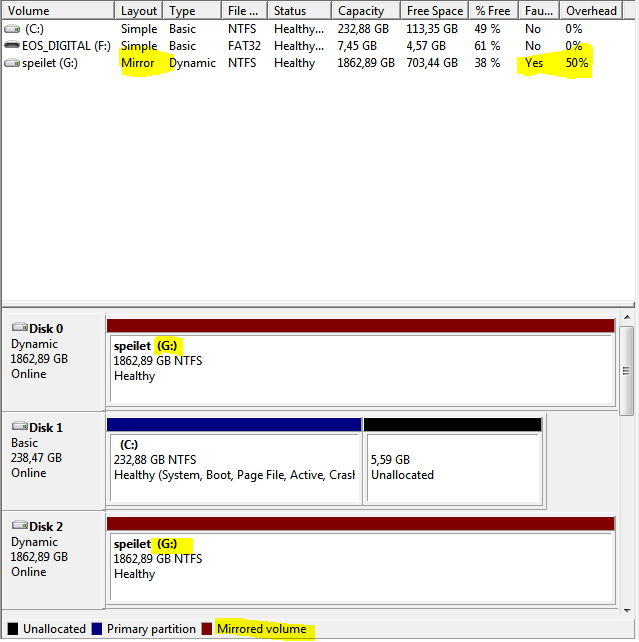
Windows does not do a good job in telling you if something's wrong with the mirror (it does hint something with a shout-out just after booting, but you have to sit there to notice it), so you need separate software. Or, you can go to Disk management, where you'll see the status of the array (I've highlighted the relevant bits). You see the two red disks, "disk 0" and "disk 2", they are both assigned to G: - if I go to Explorer, I'll just see one instance of G:. You'll also see it reports a 50% overhead, which is correct. I have 2x 2TB = 4TB disk space, but only 2 TB is available. 50% is lost, because it's mirrored.

Next part will be about continuous backup, or using services that let's you forget about backup. Stay tuned.
One way of ensuring your data is to mirror it continuously, usually by mirroring the whole disk. A drawback of data mirroring is cost - you need at least two disks, which means the price doubles. That is where partitioning steps up and says hey, you don't need to mirror everything - just put the important bits on the mirrored drive. You usually don't have more than a 256 GB disk of personal data (I know many who have less - a few have a lot more), which means you can have a small-ish set of drives for mirroring.
It actually makes sense not just because of the price tag, but because of the time it takes to rebuild the drive.
The benefit of this setup is quite easy to see, because recovering data from a hard drive failure can be very expensive, and always takes a certain amount of time. And even if you have a backup, you risk data loss because when did you perform a backup the last time? Even if it's a few hours ago, it doesn't help much if the work you did after, is gone.
How to set up mirroring
Strictly speaking, there are two ways of mirroring, one is by hardware, which you set up in your computer's BIOS, the other one is software based and can be done from the operating system.In either case, you'll just see it as a regular hard drive on your system, but behind the scenes there are two drives, and every write action is performed on both disks. If one fails, the system automatically fails over to the working one. Hopefully you'll also get a message about the failure, but this depends on the software.
I'll just quickly go through the built-in feature in Windows 7. Go to Disk management (either click through Control Panel, Administrative tools, Computer Management , Storage and hit Disk Management - or just write disk management and click on "Create and format hard disk partitions" or from the run dialog, write diskmgmt.msc). Right click the disk you want to mirror, and select "Add mirror..." This option is only available if a suitable disk exists. You can also remove mirrors the same way.
Windows 8 has a new feature called "Storage Spaces" that provides the option to mirror or distribute data over several disks. You'll find a nice review of this feature at howtogeek.com.
Things Takes Time
A word of caution here, (re)building an array of disks takes time. I have two 2 TB disks mirrored, and whenever I hit blue screen or reboot or system crash of any type (last time, way back in 2012) I couldn't really exhale until some 6 hours later... because meanwhile, the status of the array was "rebuilding". It basically means going through every bit on the one drive and replicating it on the other. And if the working drive fails during that time, you are in a hard place. (So if you're really really paranoid about losing anything, you might want to keep a spare drive handy, or even go for a heavier RAID setup, like RAID 5, which involves more hardware, but has a higher fault tolerance)Windows does not do a good job in telling you if something's wrong with the mirror (it does hint something with a shout-out just after booting, but you have to sit there to notice it), so you need separate software. Or, you can go to Disk management, where you'll see the status of the array (I've highlighted the relevant bits). You see the two red disks, "disk 0" and "disk 2", they are both assigned to G: - if I go to Explorer, I'll just see one instance of G:. You'll also see it reports a 50% overhead, which is correct. I have 2x 2TB = 4TB disk space, but only 2 TB is available. 50% is lost, because it's mirrored.
Next part will be about continuous backup, or using services that let's you forget about backup. Stay tuned.
